Change cookie settings so videos will play
On the desktop web browser version of AC Central, if you do not accept analytics cookies on the initial popup banner, videos will not display. You will see this:

To change your cookie settings, click the round cookie icon in the bottom left of the browser window.

That brings up an opt-out preferences window. If you are located in the USA, it will look like this:
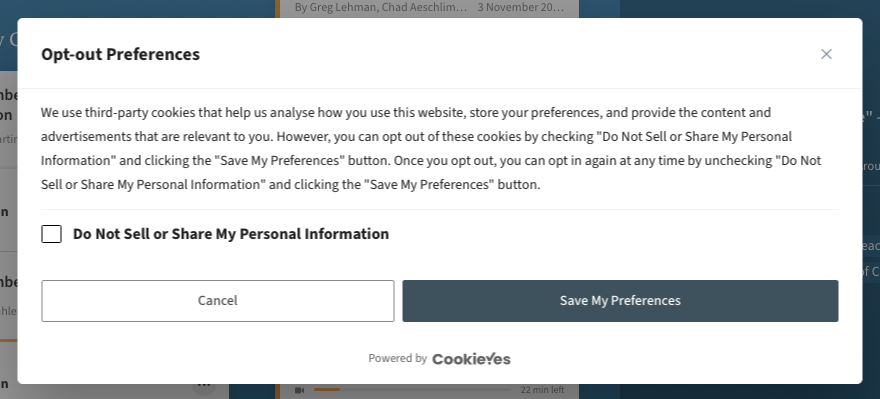
Un-check the "Do not sell or share my personal information" box to activate cookies. (By the way, we do not sell your personal information no matter what is checked.) Click the "Save My Preference" button and close the popup. That should cause the page to reload and videos will play normally. If the page does not reload automatically, then you should manually reload the page.
If you are located outside of the USA, then the preferences popup window will be more detailed and let you select which category of cookies to enable. It is the Analytics cookies that must be enabled in order for videos to play.
Customer support service by UserEcho